Skip to content
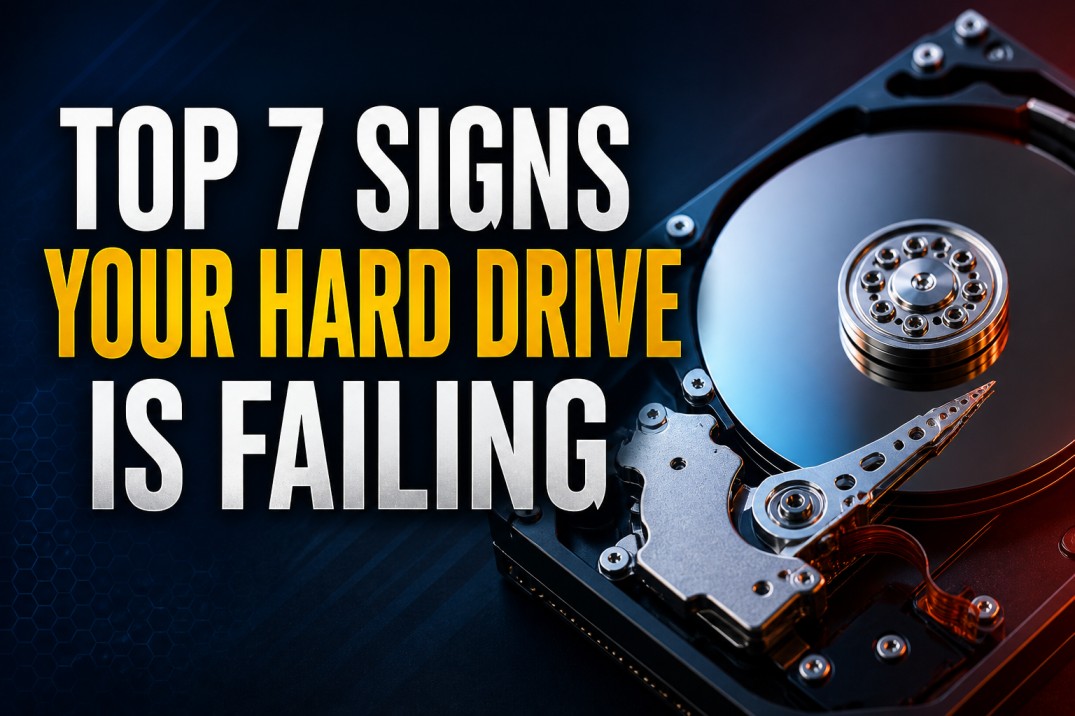
Top 7 Signs Your Hard Drive Is Failing
Introduction
A hard drive is one of the most important components of any computer system. It stores everything from operating system files and business documents to family photos, videos, and applications. Whether you use a laptop, desktop, server, or external storage device, a failing hard drive can lead to serious data loss if the warning signs are ignored.
Most hard drives do not fail suddenly without symptoms. In many cases, they begin showing early signs of trouble days, weeks, or even months before complete failure occurs. Recognising these signs early can help you protect important data and avoid permanent loss.
Here are the top 7 signs your hard drive may be failing and what you should do if you notice them.
1. Slow Performance and Frequent Freezing
One of the earliest signs of hard drive failure is a noticeable drop in system performance. Your computer may suddenly become slow while booting, opening applications, accessing files, or transferring data. Tasks that once took a few seconds may begin taking several minutes.
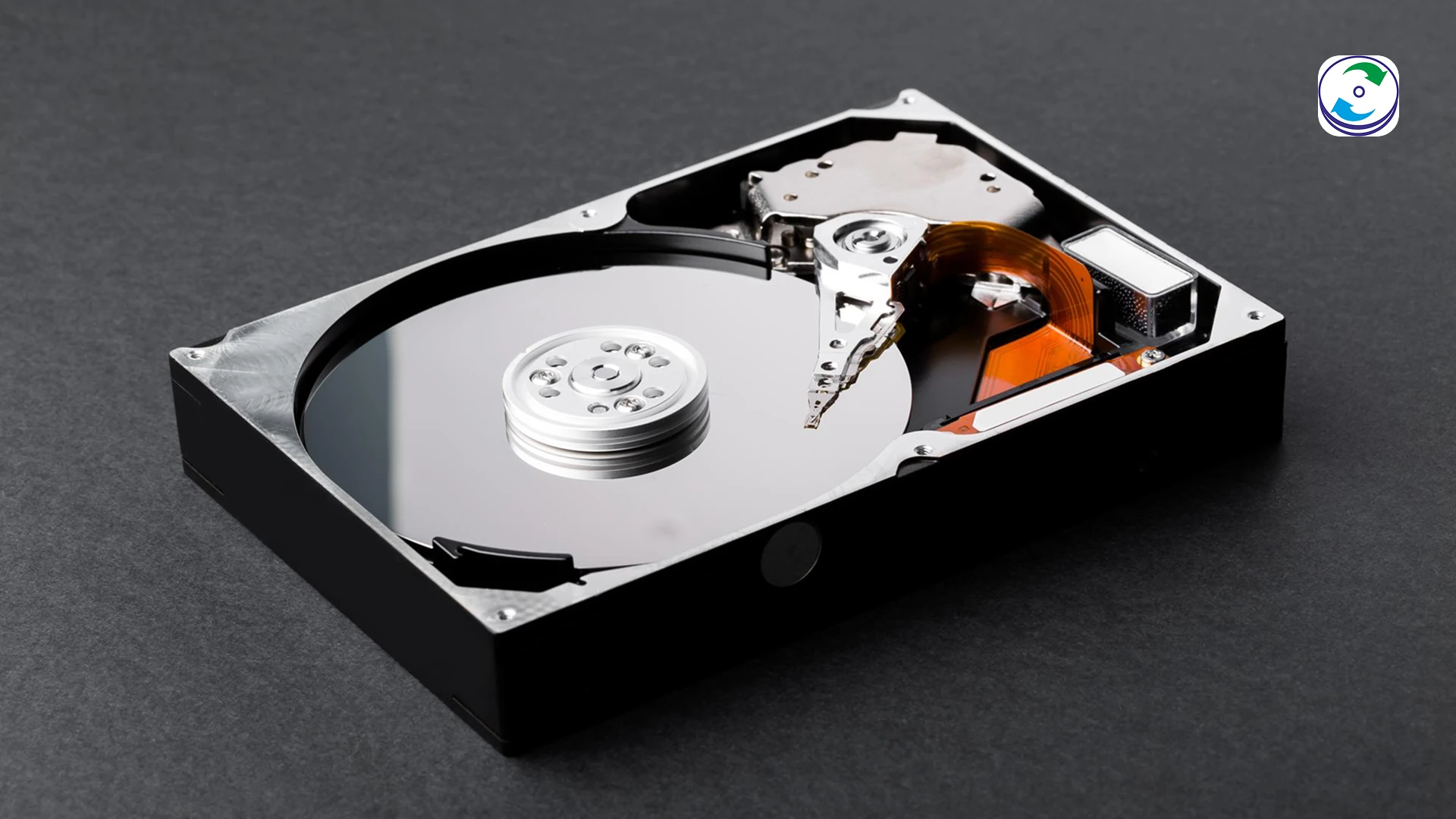
This often happens because the hard drive is struggling to read damaged sectors. Over time, storage devices can develop bad sectors that make accessing data difficult for the operating system. As the system repeatedly attempts to read those areas, overall performance becomes significantly slower.
Frequent freezing while browsing folders, opening large files, or copying data is another warning sign that should not be ignored. While software issues can sometimes cause similar symptoms, persistent lag combined with other storage-related problems may indicate that the hard drive is beginning to fail.
2. Corrupted or Missing Files
Another major sign of hard drive failure is file corruption. You may notice that documents no longer open properly, photos become distorted, videos stop playing, or folders disappear unexpectedly. Error messages such as “file corrupted” or “cannot read file” may also appear more frequently.
As hard drives age and develop damaged sectors, stored data becomes increasingly difficult to access. In some cases, the file system itself may become corrupted, resulting in missing or unreadable files.
If important files suddenly become inaccessible, it is important to back up available data immediately. Continuing to use the drive heavily after noticing corruption can increase the risk of permanent data loss.
3. Frequent System Crashes and Blue Screen Errors
Unexpected crashes and restart loops are often linked to storage problems. Since the operating system constantly reads critical system files from the hard drive, any issue with accessing those files can cause the computer to freeze, crash, or display boot errors.
Windows users may encounter Blue Screen of Death (BSOD) errors, while Mac users may experience repeated startup failures or kernel panics. You may also notice the system freezing during updates, software installations, or file transfers.
Occasional crashes can happen for many reasons, but if they occur repeatedly along with disk-related error messages, the hard drive could be the source of the problem. Ignoring these warnings may eventually lead to complete drive failure
4. Unusual Error Messages During File Access
Frequent disk-related error messages are another strong indication that your hard drive may be failing. Messages such as “drive not accessible,” “disk structure corrupted,” or “delayed write failed” usually appear when the drive struggles to read or write data properly.
In many cases, users temporarily regain access to the drive after restarting the system, but the problem often returns and becomes more severe over time. These errors typically indicate underlying issues with the file system, firmware, or physical sectors of the drive.
When such messages appear repeatedly, it is important not to ignore them. Backing up your data early can prevent a much larger recovery problem later.
5. Drive Not Detected by the Computer
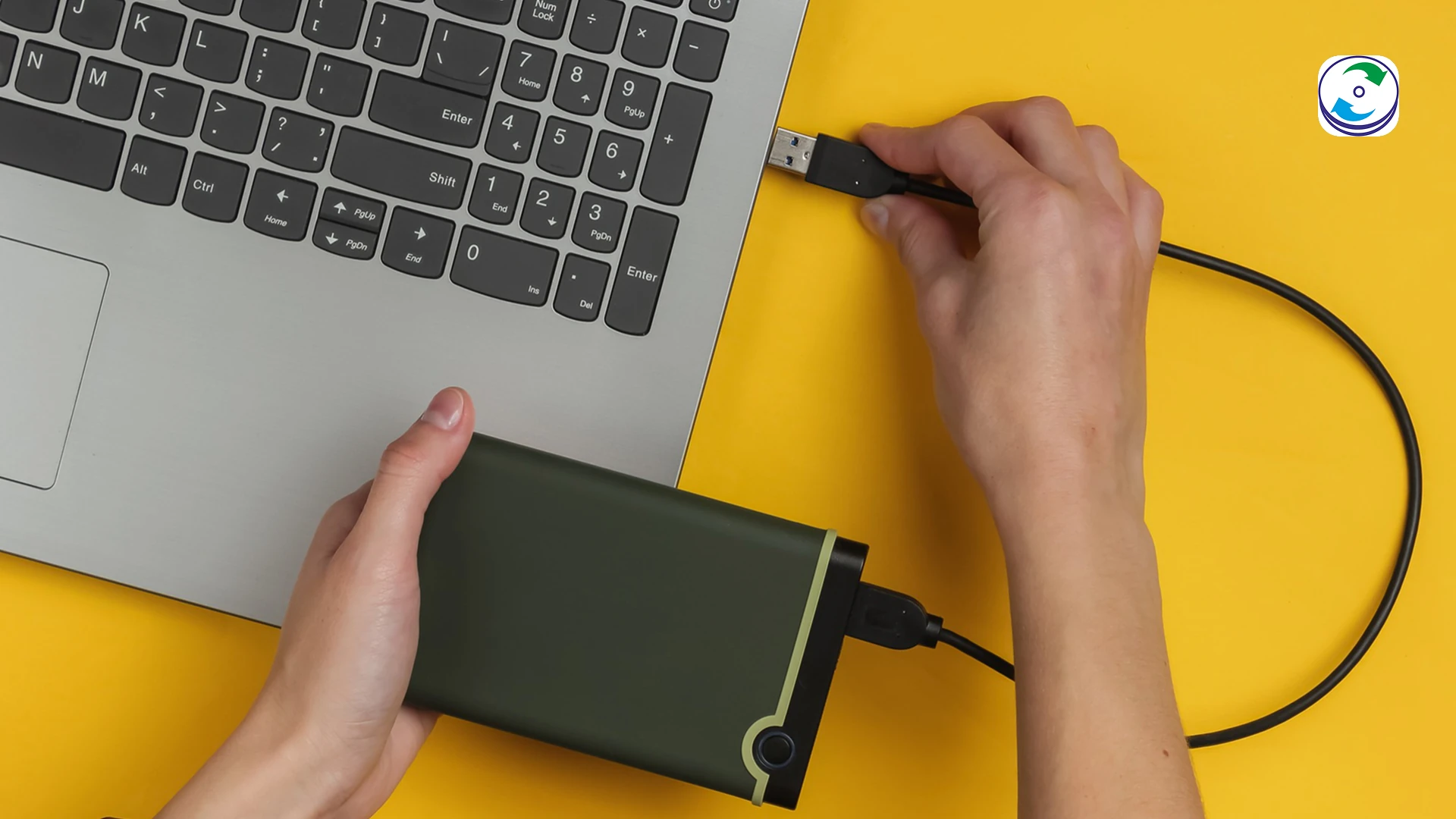
A hard drive that suddenly disappears or fails to appear consistently is another serious warning sign. External drives may stop showing up in File Explorer, while internal drives may not be detected by the BIOS or operating system at startup.
You may encounter messages such as “No boot device found” or notice that the drive disconnects randomly during use. These issues can occur due to firmware corruption, electronic component failure, damaged connectors, or internal drive problems.
Many users repeatedly reconnect the drive or attempt formatting in hopes of fixing the issue. Unfortunately, these actions can sometimes worsen the condition of the drive. If a hard drive is frequently disappearing or failing to initialize properly, professional evaluation is often the safest option.
6. SMART Warnings and Disk Health Alerts
Modern hard drives include a built-in monitoring feature known as SMART (Self-Monitoring, Analysis, and Reporting Technology). This system tracks the overall health of the drive and warns users about potential hardware problems before complete failure occurs.
You may see alerts such as “SMART failure predicted,” “Drive health critical,” or “Backup your data immediately.” These warnings are designed to give users time to secure their data before the drive becomes unusable.
Unfortunately, many people ignore SMART warnings until the drive completely stops functioning. Once total failure occurs, recovery becomes more difficult and expensive. If your system displays a SMART warning, you should immediately back up important data, reduce drive usage, and plan for replacement as soon as possible.
7. Overheating and Sudden Shutdowns
Excessive heat is another major factor that contributes to hard drive failure. Hard drives are sensitive to temperature changes, and prolonged overheating can damage internal components and shorten the lifespan of the device.
You may notice the laptop becoming unusually hot, external drives overheating during operation, or the system shutting down unexpectedly after extended usage. Frequent drive disconnections and performance drops may also occur due to thermal stress.
Overheating is often caused by poor ventilation, dust buildup, failing cooling fans, or continuous heavy workloads. Keeping your system clean and ensuring proper airflow can help reduce the risk of heat-related drive damage.
What You Should Do If Your Hard Drive Is Failing
If you notice any of these warning signs, taking immediate action is extremely important. The first step is to back up all critical data as quickly as possible. Continuing to use a failing drive can worsen the damage and reduce the chances of successful recovery.
It is also important to avoid risky DIY repair attempts. Running unreliable software tools, repeatedly restarting the system, or opening the hard drive outside a professional environment can permanently damage recoverable data.
Professional data recovery specialists use advanced imaging systems, firmware repair tools, and controlled cleanroom environments to safely recover data from damaged storage devices. Seeking professional assistance early often improves recovery success rates significantly.
Conclusion
Hard drive failures rarely happen without warning. Slow performance, corrupted files, repeated crashes, disk errors, detection issues, SMART alerts, and overheating are all signs that your storage device may be approaching failure.
Recognising these symptoms early gives you the best opportunity to protect valuable data and avoid permanent loss. Acting quickly, maintaining regular backups, and avoiding unsafe recovery attempts can make a major difference when dealing with a failing hard drive.
At DataCare Labs, we specialise in professional hard drive, SSD, RAID, and server data recovery solutions. If your drive is showing signs of failure, our experts can help diagnose the issue and recover your important data safely and securely.