Skip to content
Pen Drive Not Detected: 8 Fixes in the Safe Order, and When the Drive Is Actually Dead
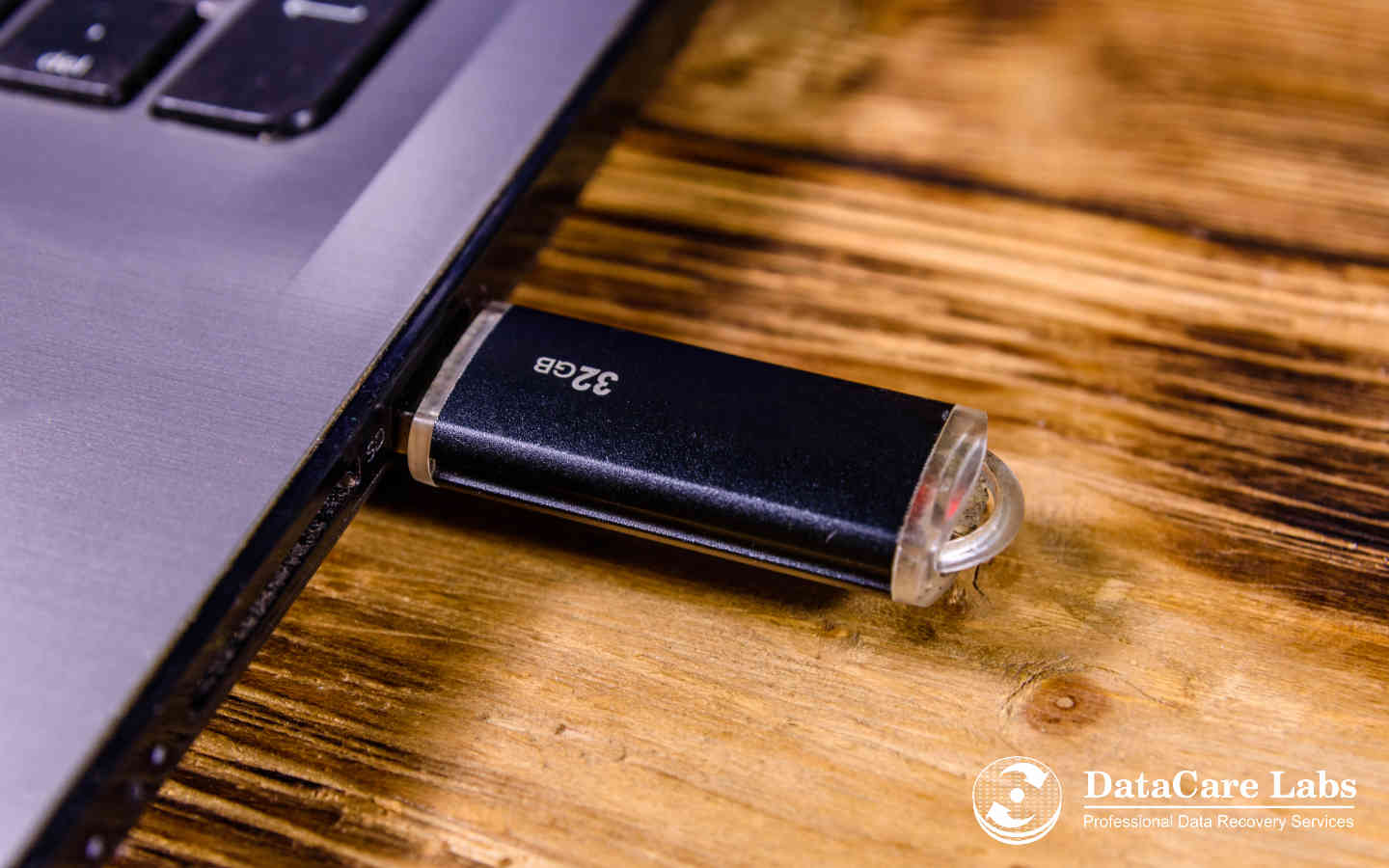
You plug in the pen drive and nothing happens — no drive letter, no sound, or the “USB device not recognized” balloon. Most of the time this is Windows, a port or a cable, and one of the eight fixes below brings it back. Some of the time the drive’s controller or memory chip has failed, and the same fixes — especially the ones Windows offers, like format — destroy what is left.
So the fixes are in a deliberate order: first the ones that cannot hurt, then the ones that tell you whether the drive is alive, and only then anything that writes to it. If the files on it are the only copy, follow the order.
Fix 1: A different port, a different computer, no hub
Plug the pen drive directly into a port on the computer — not a hub, keyboard or monitor port — and try two or three ports, including a USB 2.0 port if the machine has one (older drives sometimes misbehave on USB 3 ports). Then try a second computer. If it works anywhere, the drive is fine and the fault is the first computer’s port or drivers; copy your files while it is connected.
If the pen drive gets warm within a minute of being plugged in, unplug it. A hot drive has a shorted controller; leaving it connected finishes it off.
Fix 2: Look in Disk Management, not File Explorer
Right-click Start → Disk Management. A pen drive can be invisible in File Explorer for four harmless reasons and still be listed here. Find it by its size (a 32 GB drive shows as about 29 GB).
- Listed, with a partition, no drive letter → right-click the partition → Change Drive Letter and Paths → Add. Done.
- Listed as RAW → the file system is damaged. Windows will offer to format; decline. Go to Fix 7.
- Listed as “Unallocated” or “Not initialised” on a drive that held files → the partition table is damaged, not the data. Do not initialise or create a new volume. Go to Fix 7.
- Listed with a size of 0 bytes, or “No media” → the drive’s controller answers but cannot reach its memory chip. This is a hardware fault; see the last section. Nothing in Windows will fix it.
- Not listed at all → continue with Fixes 3–6.
Fix 3: Device Manager — drivers and power
- Right-click Start → Device Manager. Expand Universal Serial Bus controllers and Disk drives.
- A device with a yellow warning, or listed as Unknown USB Device (Device Descriptor Request Failed): right-click → Uninstall device, unplug the pen drive, wait ten seconds, plug it back in. Windows reinstalls the driver.
- Under each USB Root Hub → Properties → Power Management, untick Allow the computer to turn off this device to save power. Laptops in particular cut power to ports.
- If Device Descriptor Request Failed persists on every port and every computer, the drive’s controller is not identifying itself — a hardware fault. Stop here and see the last section.
Fix 4: Reset the USB stack
Shut down completely (not restart — hold Shift while clicking Shut down to bypass Fast Startup), unplug the power cord or, on a laptop, hold the power button for 15 seconds, then start up and try the drive again. This clears a hung USB controller, which is a common cause of “nothing happens” after a drive was pulled out mid-copy.
Fix 5: Check the pen drive on Linux or a Mac, if you can
A drive that Windows refuses to mount because of a foreign or slightly damaged file system will often mount read-only on a Mac or a Linux live USB, letting you copy the files off without changing anything. Read-only is the point — do not let either system “repair” the drive.
Fix 6: Windows’ own diagnostics — read-only
In Disk Management, if the drive is listed but Windows reports errors on it, run chkdsk X: without /f or /r (X is the drive letter). Without those switches CHKDSK only reports; with them it writes repairs to the drive and, on a failing chip, discards what it cannot read. Use the report to decide, not to fix.
Fix 7: Recover the files before you repair anything
For a drive that shows as RAW, unallocated or not initialised but is otherwise healthy, the files are still on the chip; only the map to them is damaged. The order that works:
- Install recovery software on the computer, never on the pen drive. Recuva, PhotoRec, TestDisk and similar tools handle straightforward cases; PhotoRec is free and ignores the file system entirely, which is what you want here.
- Scan the pen drive and recover to a folder on the computer’s own drive, never back onto the pen drive.
- Open a sample of the recovered files. Photos and videos that were fragmented sometimes come back with the right name and the wrong contents.
- Only once the files are safe: format the drive (quick format, exFAT for drives over 32 GB), then test it with a copy of a large file. If it fails or shows errors again, retire it.
What this will not fix: a drive that shows 0 bytes or No media, one that is not detected on any computer, or one that is detected but every read times out. Those are chip or controller faults.
Fix 8: When Windows says “format the disk” — don’t
The prompt You need to format the disk in drive X: before you can use it appears when the file system is unreadable. Formatting creates a fresh, empty file system; a quick format does not wipe the chip, but it removes the old directory and every recovery tool now has to carve files blind, with their names lost. If the files matter, recover first (Fix 7), format after.
How to tell the pen drive is physically dead
- Not detected on any computer, any port, any cable — and it is not the port, because other USB devices work.
- Device Descriptor Request Failed everywhere: the controller is not answering.
- 0 bytes / No media in Disk Management: the controller answers but the NAND chip does not.
- Gets hot within a minute: shorted controller or regulator.
- Physically damaged — bent connector, cracked casing, snapped board after being knocked while plugged in. The most common single cause of dead pen drives we see.
- Very slow, and read errors that get worse — the NAND is wearing out. Copy what you can now.
What a lab recovers from a dead pen drive
Pen drives are recovered at chip level. At DataCare Labs the analysis is free and takes 25–30 minutes; you get a firm quote before any work starts and pay only if the data is recovered.
- Broken connector or board: the USB connector or the cracked board trace is repaired under the microscope and the drive is imaged normally. The most common and least expensive case.
- Failed controller, chip intact: the NAND memory chip is removed and read directly on a chip reader; the controller’s scrambling, error-correction and page layout are then reversed to rebuild the files. Works on most pen drives with a separate NAND chip.
- Monolithic drives (the small ones where controller and memory are a single sealed part, common in slim and branded promotional drives): the internal test points are located and read directly. Harder, and not every design can be done — the analysis says which.
- Worn NAND: multiple reads with error correction to recover what the chip can still give up.
See pen drive data recovery for the service and data recovery cost for what moves the price — the same chip-level methods apply to SD and memory cards. The lab is in Pune and drives arrive by courier from across India. Contact us or call +91 9860 070809.
Stop the next one
- Eject before unplugging. Pulling a drive mid-write is the usual cause of a RAW file system.
- Never knock a pen drive while it is plugged in — the connector solder is the weakest point on the device.
- A pen drive is transport, not storage. Anything that only exists on a pen drive is one knock away from a lab.
- Cheap unbranded drives are far more often monolithic and far harder to recover. Buy a brand for anything that matters.
Pen drive not detected — frequently asked questions
Windows fixes, the format prompt, dead-drive signs, and chip-level recovery.
Still unsure what happened to your device? Call +91 9860 070809 — the analysis is free.