Skip to content
Hard Disk Not Detected: How to Tell a Cable Problem from a Dead Drive (Internal and External)
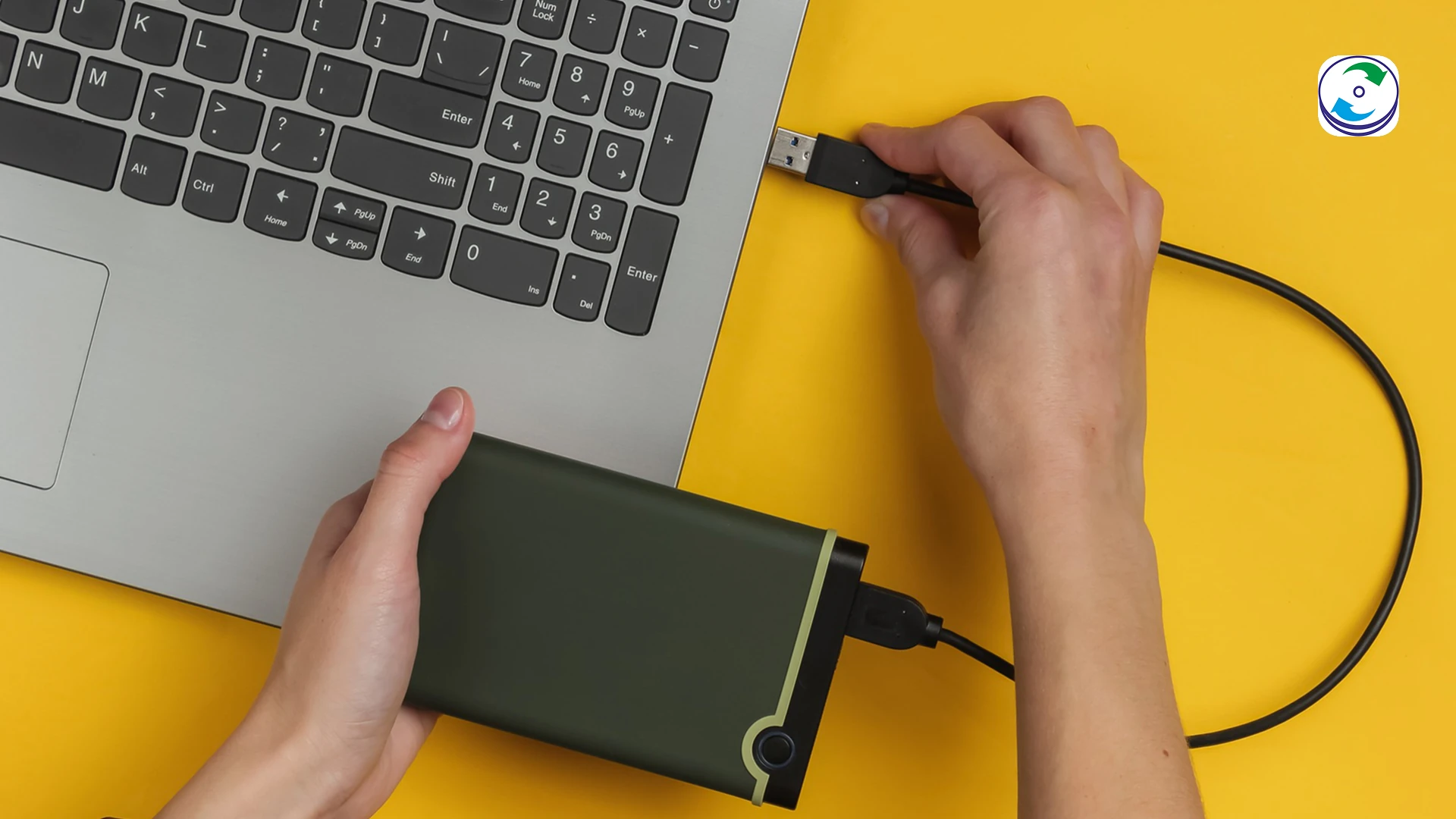
A hard disk that is not detected has one of two problems. Either the computer cannot reach it — a cable, port, enclosure, driver or setting — or the drive can no longer answer, because its electronics, firmware or mechanics have failed. The first is fixed at home in ten minutes. The second gets worse with every attempt, and the fixes for the first kind are exactly what damages the second.
This guide gives you a test that tells the two apart before you try anything, then the fixes for a connection problem, for internal and external drives separately, and what to do when the drive itself is the fault.
First, the ten-minute test: which kind is it?
Work through these in order and stop at the first one that gives an answer:
- Listen. Power the drive on once, in a quiet room. A healthy drive spins up with a soft whir and settles within a few seconds. Clicking, ticking, beeping, grinding, or spinning up and down repeatedly is a mechanical fault — stop here, do not power it on again, and go to the last section. Silence from a drive that used to spin means a board, motor or power fault.
- Check the BIOS, not Windows. For an internal drive, restart and enter setup (Dell F2, HP Esc then F10, Lenovo F1/F2, most desktops Del). If the drive is listed with its model name and capacity, the hardware sees it and the problem is in Windows: go to “detected in BIOS, missing in Windows”. If it is listed with a wrong or generic name, or 0 GB, the drive answers but its firmware is damaged — a lab job, and restarting will not change it. If it is absent, go to the internal-drive fixes.
- Check Disk Management, not File Explorer. For an external drive, right-click Start → Disk Management. A drive can be missing from Explorer for four harmless reasons (no drive letter, offline, uninitialised, unsupported file system) and still be perfectly healthy here. If it appears at all, go to “detected but not showing up”. If it does not, go to the external-drive fixes.
- Try another computer. The definitive test for any drive: connect it to a second machine. Appears there → the fault is your computer, cable or port, and you can copy your data straight off. Missing there too, with a known-good cable → the drive or its enclosure has failed.
Internal drive not detected in the BIOS
When the firmware itself cannot see the drive, no software fix applies. The causes, in the order they are worth checking:
- Loose SATA data or power cable. Desktops: reseat both ends of the data cable and swap it for another; try a different SATA port on the motherboard; reseat the power connector. Laptops: remove the base cover and reseat the drive or its interposer cable (check the service manual; this may affect the warranty).
- M.2 SSD not seated or not enabled. Reseat it firmly at the correct angle and refit the screw. Some boards disable a SATA port when a specific M.2 slot is used — check the manual.
- SATA mode or port disabled in the BIOS. Load BIOS defaults, then check that the SATA controller and port are enabled and that the mode (AHCI / RAID / Intel RST) matches how Windows was installed. Dell users: the exact procedure is in our Dell “hard disk not installed” guide.
- Power supply. A desktop drive that does not spin at all on a working data cable may simply not be getting power — try another connector from the PSU.
- The drive has failed. Two cables, two ports, BIOS defaults and another computer all fail: the drive’s board, firmware or motor is gone. Go to the last section.
External drive not detected at all
External drives add three more things that can fail before the drive itself: the cable, the port and the enclosure’s USB bridge. Rule them out first:
- Cable and port. Try a different USB cable — the cable is the single most common fault on portable drives — and a different port, directly on the computer rather than through a hub or dock. Desktop drives with their own power adapter: check the light on the adapter and try another socket.
- Power. A 2.5-inch portable drive that spins up and stops, or clicks softly and gives up, is often short of power on a laptop’s USB port. Try a powered hub or a Y-cable.
- The USB bridge inside the enclosure. If the drive spins normally but never appears on any computer with any cable, the bridge board inside the enclosure has probably failed and the drive itself may be fine. Do not open a drive that is under warranty — Western Digital in particular voids coverage when an external enclosure is opened (see our WD warranty guide). A lab can read the drive through a replacement bridge, or directly, without breaking the seal in many cases.
- Hardware encryption. Many WD My Passport and some Seagate portables encrypt the platters through the bridge board. Removing the bare drive and connecting it by SATA shows an unreadable disk even when nothing is wrong. Leave the enclosure alone.
- The drive has failed. Different cable, different port, different computer, and it still does not appear: the drive inside has failed. Last section.
Detected in the BIOS but missing in Windows
The hardware sees the drive; Windows does not. This is fixable at home, but read the caution first: if the drive holds data you need, do not initialise it, format it, or “repair” it — every one of those writes to the disk. Look, decide, then act.
- Open Disk Management (right-click Start). Find the drive by its size.
- “Not initialised” or “Unknown” on a drive that used to hold data means the partition table is damaged, not that the drive is blank. Do not click Initialise — that writes a new empty table over the old one. This is a logical recovery case: recovery software from another drive can usually rebuild the partition, and a lab certainly can.
- Healthy partition but no drive letter — right-click → Change Drive Letter and Paths → Add. Harmless.
- “Offline” — right-click the disk → Online. Harmless.
- RAW file system — the partition exists but Windows cannot read it. Windows will offer to format; decline. Recover the files first with software or a lab, then format.
- Driver problems — in Device Manager, a drive with a yellow warning under Disk drives or USB controllers: right-click → Uninstall device, then unplug and reconnect. Harmless.
Detected but slow, freezing, or disappearing
A drive that appears, then vanishes, or makes Windows hang while it is connected, is usually a failing drive with bad sectors rather than a connection fault. Stop running tests and copy the important folders off in small batches while it still reads — the full procedure, including which SMART numbers to look at, is in our Short DST failed guide. Do not run CHKDSK or repair tools on it.
What not to do when the data matters
- Do not keep power-cycling a drive that clicks or does not spin. Each attempt scrapes the platters.
- Do not initialise, format or partition a drive that shows as unknown, RAW or unallocated. The data is still there until you do.
- Do not open the drive or the enclosure. Platters are ruined by dust outside a clean room, and an opened enclosure voids most external-drive warranties.
- Do not swap the circuit board with one from an identical drive. Modern drives keep drive-specific data in the board’s ROM; the donor board will not read the platters, and on WD drives it can make things worse.
- Do not run recovery software on a drive that is not detected. Software needs the drive to be detected first; on a failing drive it just adds read attempts.
When the drive itself has failed: what the lab does
At DataCare Labs the analysis is free and takes 25–30 minutes once the drive reaches us; you get a firm quote before any work starts and pay only if the data is recovered. What the analysis usually finds on a “not detected” drive:
- Board or power fault (silent, no spin): the board is repaired or the drive’s ROM transferred to a matched donor board, then the drive is imaged. From ₹6,000 for a single hard disk.
- Firmware fault (spins, detected with a wrong name or 0 GB, or not at all): the service area is repaired with manufacturer-level tools, then imaged. From ₹6,000.
- Mechanical fault (clicking, not spinning with power confirmed): head or motor replacement in the Class 100 clean room, then imaging before the donor parts wear. From ₹10,500.
- Enclosure or bridge fault (drive fine, enclosure dead): imaged through a replacement bridge or directly, handling the hardware encryption. Usually the least expensive outcome.
- Logical fault (detected, partition gone or RAW): sector-level imaging and partition reconstruction. From ₹3,000.
See hard disk data recovery cost for what moves the price. We recover from internal hard disks, external and portable drives and SSDs of every make; the lab is in Pune and drives arrive by courier from across India. Contact us or call +91 9860 070809 — and if the drive is making a noise, do not power it on again first.
Hard disk not detected — frequently asked questions
Cable or dead drive, the BIOS test, external enclosures, and what recovery involves.
Still unsure what happened to your device? Call +91 9860 070809 — the analysis is free.
Related guides
- Pen Drive Not Detected: 8 Fixes in the Safe Order, and When the Drive Is Actually Dead
- The Unpredictable Disconnect: Why Your External Hard Drive Keeps Dropping Out and How to Save Your Files
- My External Hard Drive Is Not Showing Up: Is My Data Gone Forever?
- Data Destruction and Compliance: Do You Need a Certificate to Prove Your Data is Gone?