Skip to content
How to Recover Data from a Hard Disk: DIY Steps, When to Stop, and What a Lab Does
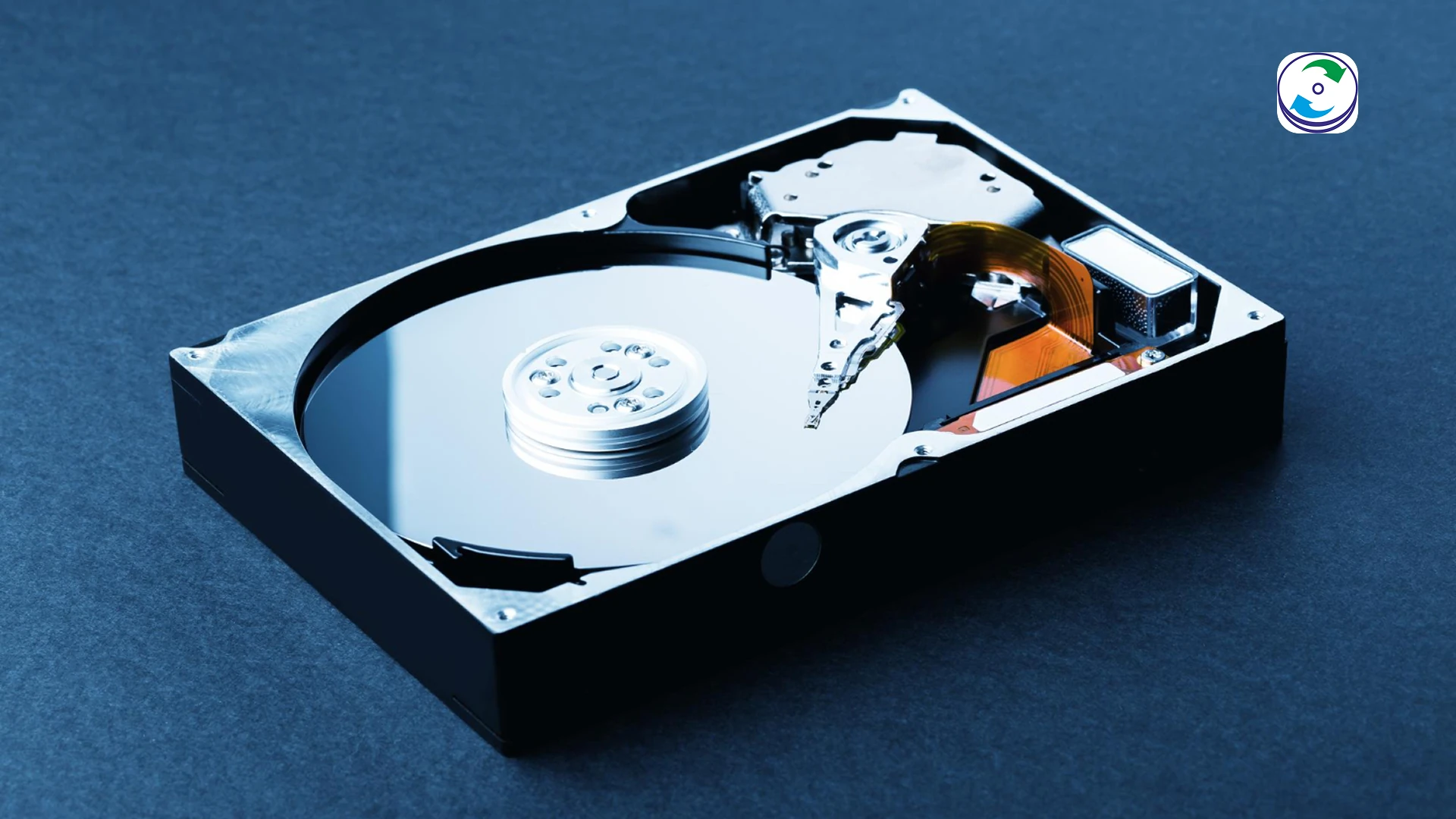
A hard disk that has stopped giving up its files is one of two things: a healthy drive with a logical problem — deleted files, a lost partition, a corrupted file system — or a drive that is physically failing. The first kind can often be recovered at home. The second kind gets worse with every attempt, and most of the drives that arrive at our lab as “unrecoverable” were recoverable a week earlier.
This guide is about telling the two apart before you do anything, what you can safely try yourself, and what happens when the drive comes to a lab. It applies to internal and external hard disks; SSDs fail differently and are covered separately under SSD data recovery.
Step 1: Work out which kind of failure you have
Ten minutes here saves the drive. Answer these before running any software:
- Does the drive make a noise it did not make before? Clicking, ticking, beeping, grinding, or repeatedly spinning up and down all mean a mechanical fault. Stop. Software cannot help, and every spin scrapes the platters. Go straight to the lab section.
- Is the drive detected at all? Check the BIOS (internal drive) or Disk Management (external drive). A drive missing from both, or appearing with the wrong capacity or a generic name, has an electronics or firmware fault. Also a lab job — but a cheaper one, because the drive does not need opening.
- Is it detected but slow, freezing, or throwing errors? Bad sectors. Copying may still work if done carefully; see step 3. Run a SMART check first — our Short DST failed guide explains what the numbers mean.
- Is it detected and healthy, but the files are gone? Deleted, formatted, lost partition, or a corrupted file system. This is the case DIY recovery is designed for. Go to step 2.
Not sure? The seven signs a hard drive is failing covers the symptoms in more detail. If in doubt, treat it as failing.
Step 2: DIY recovery for deleted or formatted drives (healthy hardware only)
When you delete a file or format a drive, the data itself is not erased — the file system’s index entry is. The data stays on the platters until something new is written over it. That is why the rules are what they are:
- Stop writing to the drive immediately. Do not save, install, download, or let Windows update onto it. If it is the boot drive, shut down and work from another computer or a bootable USB.
- Check the Recycle Bin and any backup first. Windows File History, a cloud sync folder, an old external drive. The fastest recovery is a copy that already exists.
- Install the recovery software on a different drive — never on the one you are recovering from. Recuva, PhotoRec and similar tools are adequate for straightforward deletions; the paid tools add better file-system reconstruction.
- Recover to a different drive. The tool must write the recovered files somewhere else. Point it at an external drive with enough space.
- Scan once, deeply, and stop. A “quick scan” finds recently deleted files; a “deep scan” carves files by their signatures and takes hours. Do one deep scan and work from its results rather than re-scanning repeatedly.
- Check the results before you celebrate. Open a sample of recovered files. Carved files sometimes come back with the right name and size and the wrong contents, especially large photos and videos that were fragmented on the disk.
What this will not fix: a drive with bad sectors (the scan will hang or the tool will skip the files you want), a drive that is not detected, or files whose space has already been overwritten. Formatted drives recover well as long as the format was a quick format and nothing was installed afterwards; a full format on Windows Vista or later writes zeros across the drive, and those files are gone.
Step 3: Copying from a drive with bad sectors
If the drive is detected but slow and erratic, it is failing, and you have a limited window. Use it to copy, not to repair:
- Copy the irreplaceable folders first, in small batches, to an external drive. Skip anything that stalls and come back to it last.
- Do not run CHKDSK, disk “repair” tools, or a full recovery-software scan. All three read the damaged surface repeatedly and CHKDSK writes to it, discarding what it cannot read.
- Watch the drive. If copying slows to a crawl, the drive disconnects, or it starts to click, stop. It has moved from failing to failed.
- If the drive is the boot drive and Windows will not start, do not reinstall Windows to get in — that writes over the files. Remove the drive and read it from another computer with a USB adapter, or bring it in.
What not to do to a failing hard disk
These are the things that turn a recoverable drive into an unrecoverable one. Every one of them arrives at the lab regularly:
- Repeated power cycling. Each spin-up of a drive with a failed head drags it across the platter. Two attempts are enough to confirm the fault.
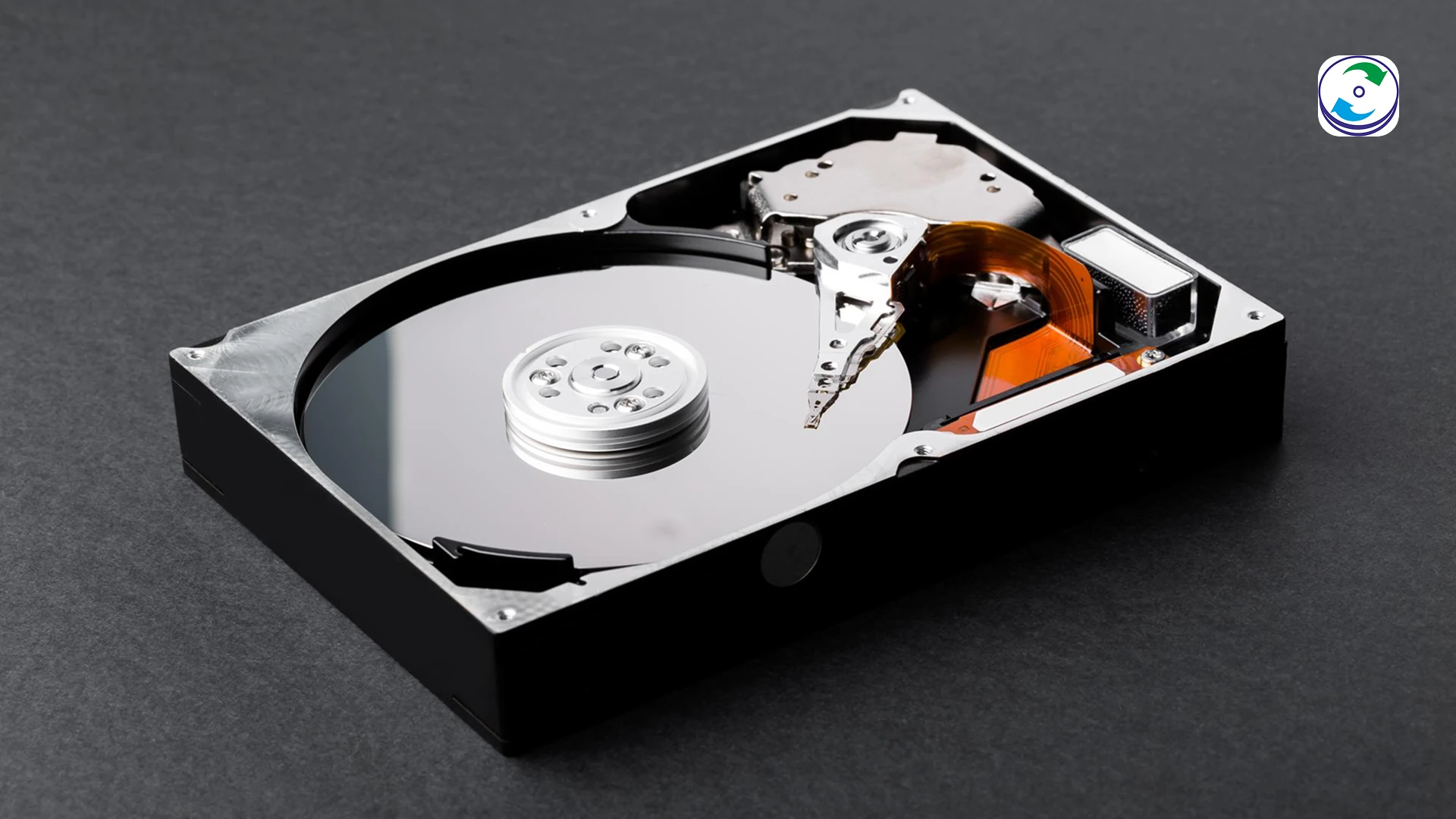
- Opening the drive. The platters are exposed to dust the moment the lid lifts; outside a Class 100 clean room the data is gone in minutes. There is no “just having a look”.
- The freezer, tapping, or dropping it. Old forum advice for a different generation of drives. On modern drives the freezer condenses moisture onto the platters and tapping damages the heads.
- Swapping the circuit board. Modern drives store adaptive data unique to each drive in the board’s ROM. A board from an identical model will not read the platters; the ROM has to be transferred, which is a lab procedure.
- Running CHKDSK /r or a “repair” on a drive with bad sectors. It writes to the drive and marks what it cannot read as lost.
- Reinstalling the operating system to “see if it fixes it”. It overwrites exactly the area most of your files are in.
How a data recovery lab recovers a hard disk
When you bring a drive to DataCare Labs, the first 25–30 minutes are a free analysis that identifies which of the failure types the drive has. You get a firm quote before any work starts, and you pay only if the data is recovered. The work itself falls into four kinds:
- Logical recovery — the drive is healthy; the file system, partition table or files are damaged or deleted. The drive is imaged sector by sector so the original is never written to, and the files are rebuilt from the image. From ₹3,000 for a single drive.
- Bad-sector imaging — the drive is failing but readable. A hardware imager reads it at reduced speed, retries failed sectors on its own schedule and backs off when a head struggles, which is the opposite of what a Windows copy does. This is how most “slow and erratic” drives are recovered.
- Firmware repair — the drive appears with the wrong name or 0 GB, or is not detected although it spins normally. The service area is repaired with manufacturer-level tools, then the drive is imaged. From ₹6,000.
- Mechanical recovery — clicking, not spinning, or a seized motor. The drive is opened in the Class 100 clean room, the head stack or motor is replaced with a matched donor, and the platters are imaged before the donor part wears. From ₹10,500.
Prices rise with capacity and the severity of the fault; the data recovery cost page explains what moves them. Recovered data is verified — you get a file list, and a sample check of the files that matter to you — and delivered on a new drive.
What we recover from
Every make and generation of hard disk: Seagate, Western Digital, Toshiba, Hitachi/HGST and Samsung, in laptops, desktops, external and portable drives, and inside NAS boxes, servers and RAID arrays. Failures from drops, power surges, water and fire, wear, and plain age. The lab is in Pune and drives arrive from every part of India by courier. Contact us or call +91 9859 070809. If the drive is making a noise, do not power it on again first.
After the recovery: stop it happening again
- Keep two copies of anything that matters, on different devices, one of them not in the house — an external drive plus a cloud folder is enough for most people.
- Check SMART health every few months with a free tool such as CrystalDiskInfo. Reallocated or pending sectors are the early warning; a drive at “Caution” should be replaced, not nursed.
- Use a UPS or surge protector on desktops and NAS units. Board and firmware failures are very often a power event.
- Handle laptops shut down, not asleep; a sleeping laptop’s disk is still spinning when the bag is dropped.
- A drive that has failed once and been recovered is not worth re-using. Replace it.
Recovering data from a hard disk — frequently asked questions
DIY limits, dead and formatted drives, software safety, cost and turnaround.
Still unsure what happened to your device? Call +91 9859 070809 — the analysis is free.