Skip to content

BitLocker Recovery Key: Where to Find It, and What to Do If It Is Lost
Quick Answer: Where Is My BitLocker Recovery Key?
Your laptop has stopped at a blue screen and asks for a BitLocker recovery key. Don’t panic, and don’t reset the laptop. In most cases, Windows saved the BitLocker recovery key to your Microsoft account when it turned encryption on. So you can find your BitLocker recovery key from another computer in about two minutes.
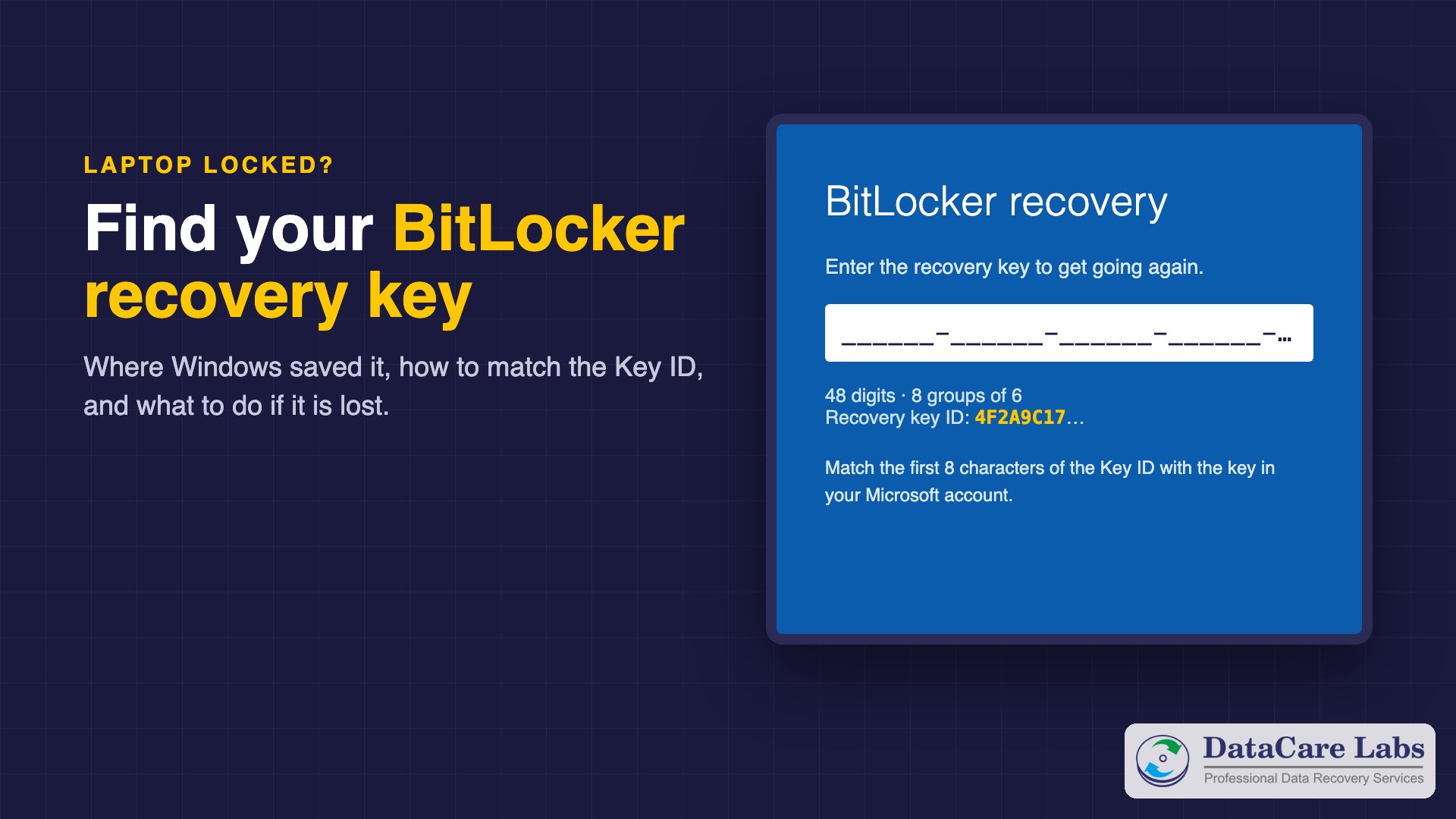
The BitLocker recovery key is a 48-digit number, in eight groups of six digits. The screen also shows a Key ID, so you can pick the right key if you have more than one. This guide shows where Windows keeps the key, how to match it, and what to do if you have truly lost it.
Drive has bad sectors or a hardware fault? If you still have the BitLocker recovery key, your data can usually be recovered in our lab. See bad sectors or a failed drive below.
- Key length : 48 digits, in 8 groups of 6
- Most common place : Your Microsoft account
- Office laptops : Your IT team (Entra ID or Active Directory)
- Key ID : Shown on the screen, matches the saved key
- Without the key : The data cannot be unlocked
- Bad sectors or failed drive : Data usually recoverable with your key
Why Your Laptop Is Asking for a BitLocker Recovery Key
BitLocker encrypts the whole drive. A security chip in the laptop, the TPM, normally unlocks it at every start without asking you. However, the TPM releases the key only when the start-up looks exactly as it did before. When something changes, Windows asks for the recovery key instead. Common triggers are:
- A BIOS or firmware update, especially one that was interrupted.
- A changed BIOS setting, such as Secure Boot, the TPM, or the boot order.
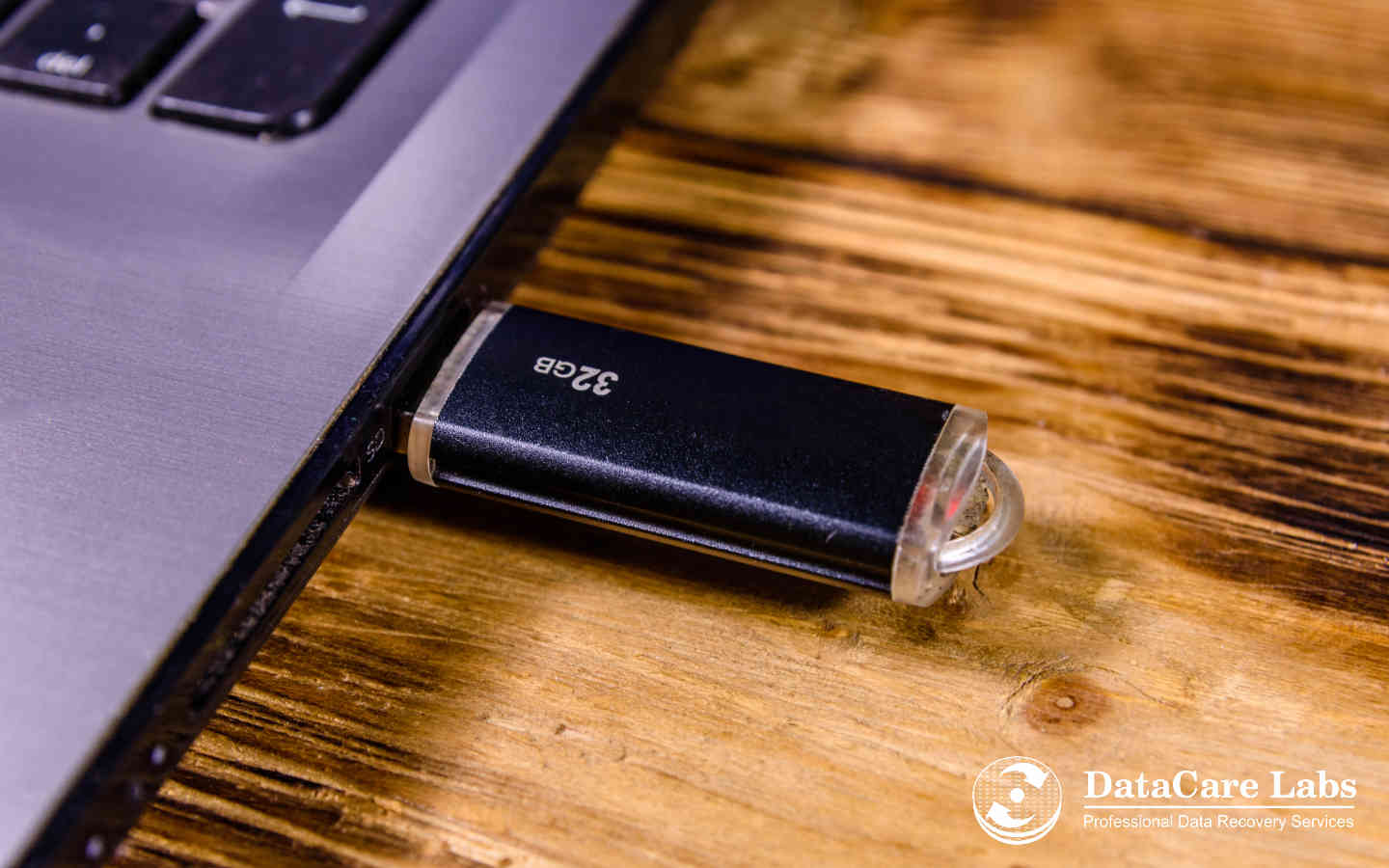
- Starting from a pen drive, or a pen drive left plugged in at start-up.
- A docking station, or new hardware such as a replaced motherboard or drive.
- Too many wrong PIN attempts, on laptops that use a BitLocker PIN.
- A Windows update that changes the boot files.
Many owners do not know their drive is encrypted at all. On Windows 11, device encryption turns on by itself on supported laptops when you sign in with a Microsoft account. As a result, a laptop bought with Windows 11 Home can be encrypted from the first day. The good news: in that case, Windows also saved the BitLocker recovery key to that Microsoft account.
Step 1: Note the Key ID on the Recovery Screen
Look at the BitLocker recovery screen before you do anything else. It shows a line such as Recovery key ID, followed by the first characters of an ID. Write them down. Each encrypted drive has its own key, and the Key ID tells you which saved key belongs to this drive.
If the screen says Preparing BitLocker recovery, wait for it to finish. Do not switch the laptop off. Next, the BitLocker recovery screen asks for the key.
Step 2: Find the BitLocker Recovery Key in Your Microsoft Account
- On another computer, open aka.ms/myrecoverykey. It opens the recovery keys page of your Microsoft account.
- Sign in with the same Microsoft account you used on the locked laptop. If the family uses several accounts, try each one.
- Find the entry whose Key ID starts with the characters on the screen.
- Type the 48-digit key on the laptop. Windows adds the dashes for you. Then press Enter.
The page lists one entry per encrypted drive, with the device name and date. If the list is empty, Windows did not save the key to that account. In that case, try the other places below.
Find Your BitLocker Recovery Key Using Your E-mail Address
Your Microsoft account is an e-mail address. It may be an Outlook or Hotmail address, or a Gmail or office address that someone registered as a Microsoft account. The key is saved under whichever address was used to sign in to Windows on that laptop. So the real question is: which e-mail was it?
- Think of every e-mail address in the family or office: yours, your spouse’s, your child’s, and the one the shop used when it set up the laptop.
- Sign in at aka.ms/myrecoverykey with each address in turn, and look for a Key ID that matches the screen.
- Search each mailbox for BitLocker or recovery key. Many people e-mail the key to themselves, and IT teams and shops sometimes send it by e-mail. A photo of the key in an old e-mail counts too.
- If you forgot the password of that address, recover the Microsoft account first at account.live.com/password/reset. The key is still there once you get back in.
One warning: Microsoft does not send the BitLocker recovery key by e-mail on its own. If you get an e-mail or a call offering to send your key, it is a scam. Never share the key or your account password with anyone who contacts you first.
Other Places the BitLocker Recovery Key May Be Saved
If your Microsoft account does not list it, you can still find your BitLocker recovery key in one of these places:
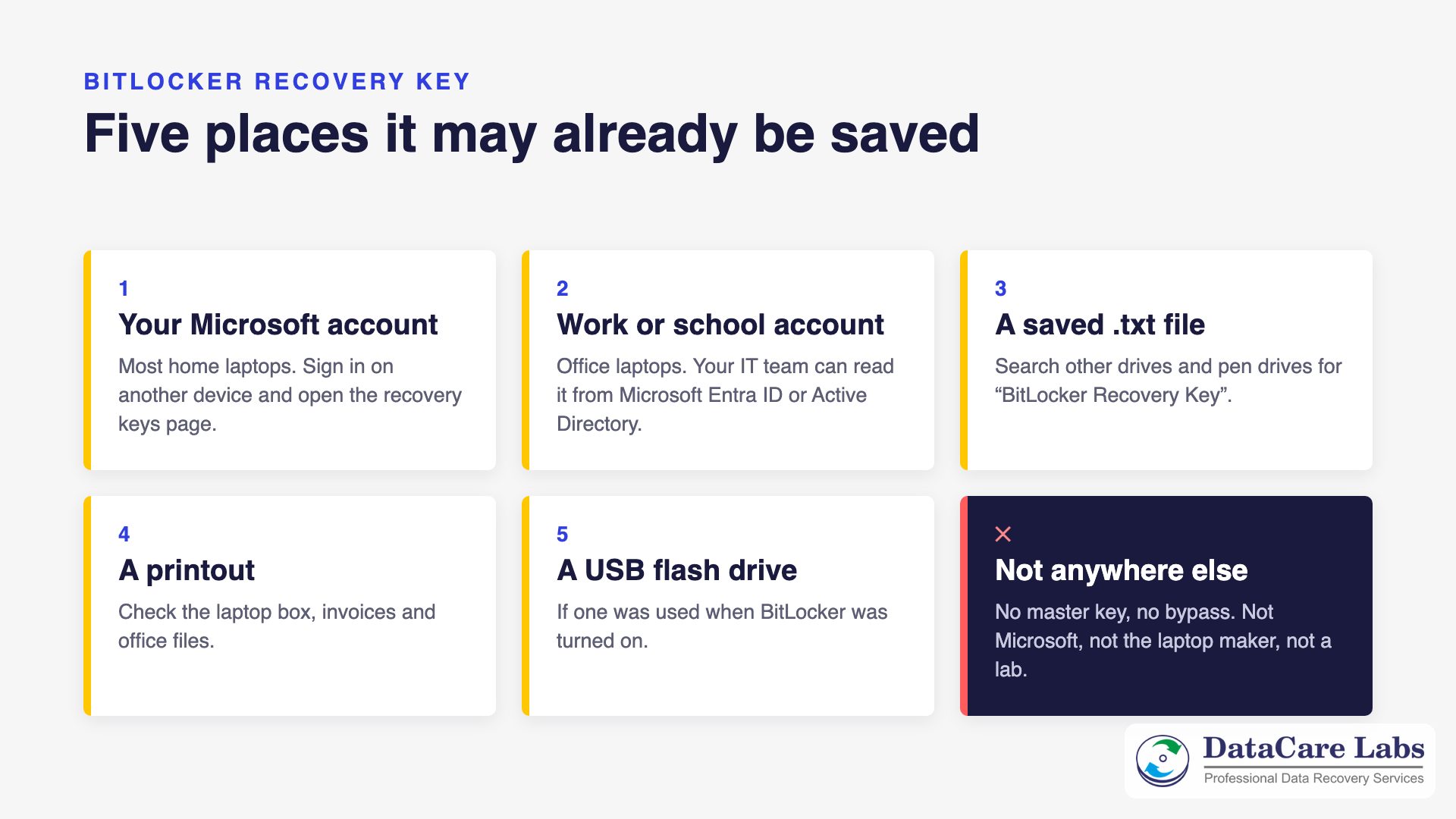
- Work or school account. On an office laptop, your company usually keeps the BitLocker recovery key in Microsoft Entra ID or Active Directory. Ask your IT team, or sign in at aka.ms/aadrecoverykey with your work account.
- A saved text file. When BitLocker started, Windows may have saved a file named BitLocker Recovery Key followed by the Key ID. Search your other computers, external drives and pen drives for it.
- A printout. Check the laptop box, the invoice folder and office files.
- A USB flash drive. Some setups save the key to a pen drive. Plug it in at the BitLocker recovery screen.
- Whoever set up the laptop. A shop, a dealer or a colleague may have used their own Microsoft account. Ask them to check it.
Before You Type the Key: Undo the Change That Triggered It
Sometimes the laptop starts normally once the start-up looks familiar again. So, if you know what changed, try undoing it first:
- Unplug pen drives, external drives and the docking station, then restart.
- If you changed the boot order, Secure Boot or a TPM setting in the BIOS, set it back.
- Shut the laptop down fully, then start it again.
Only undo a change you know you made. Resetting the BIOS to defaults can change more settings, so it may not help.
Dell, HP and Lenovo Laptops: Why the Key Is Asked After an Update
Dell, HP and Lenovo all send BIOS updates through their own support apps. Before a BIOS update, the app should suspend BitLocker for one restart. When the app skips that step, or a power failure cuts the update short, the next start asks for the BitLocker recovery key.
The fix is the same on every brand. Find the BitLocker recovery key in the Microsoft account used on the laptop, or ask your IT team for an office laptop. After that, Windows usually starts normally again. If it keeps asking at every start, back up the key, suspend BitLocker and run the BIOS update again.
Bad Sectors or a Failed Drive? With the Key, Your Data Can Come Back
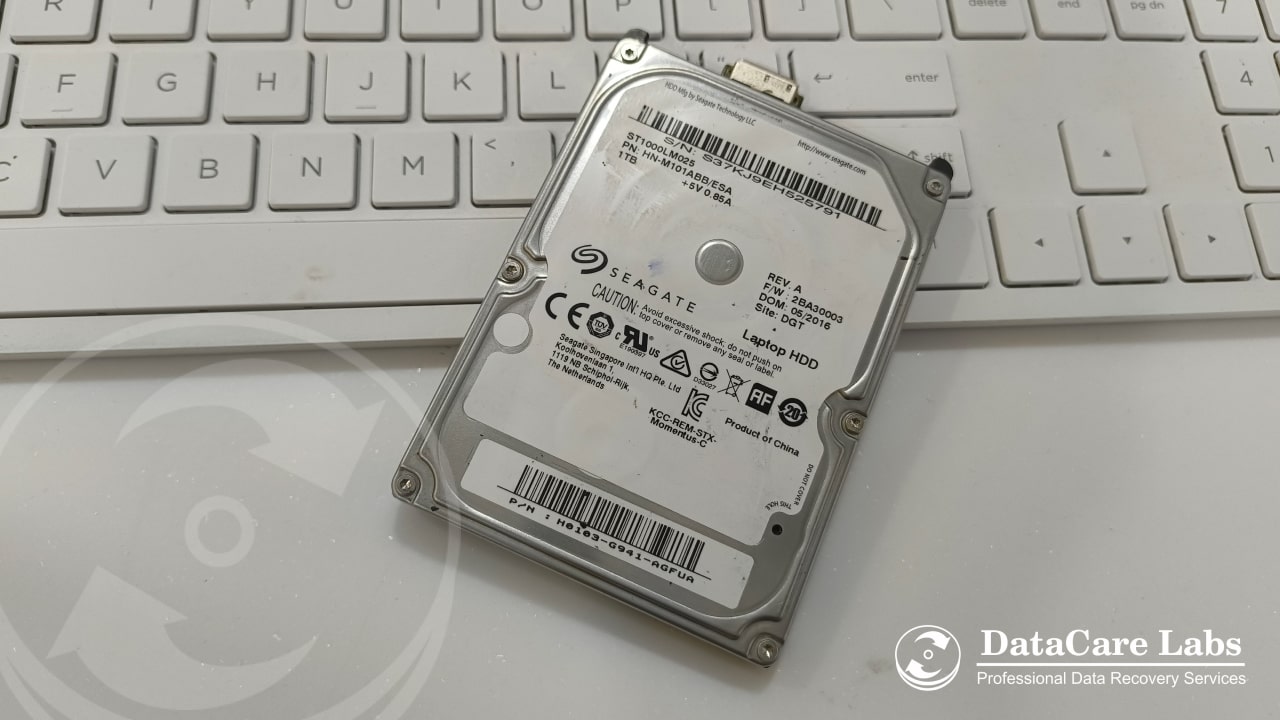
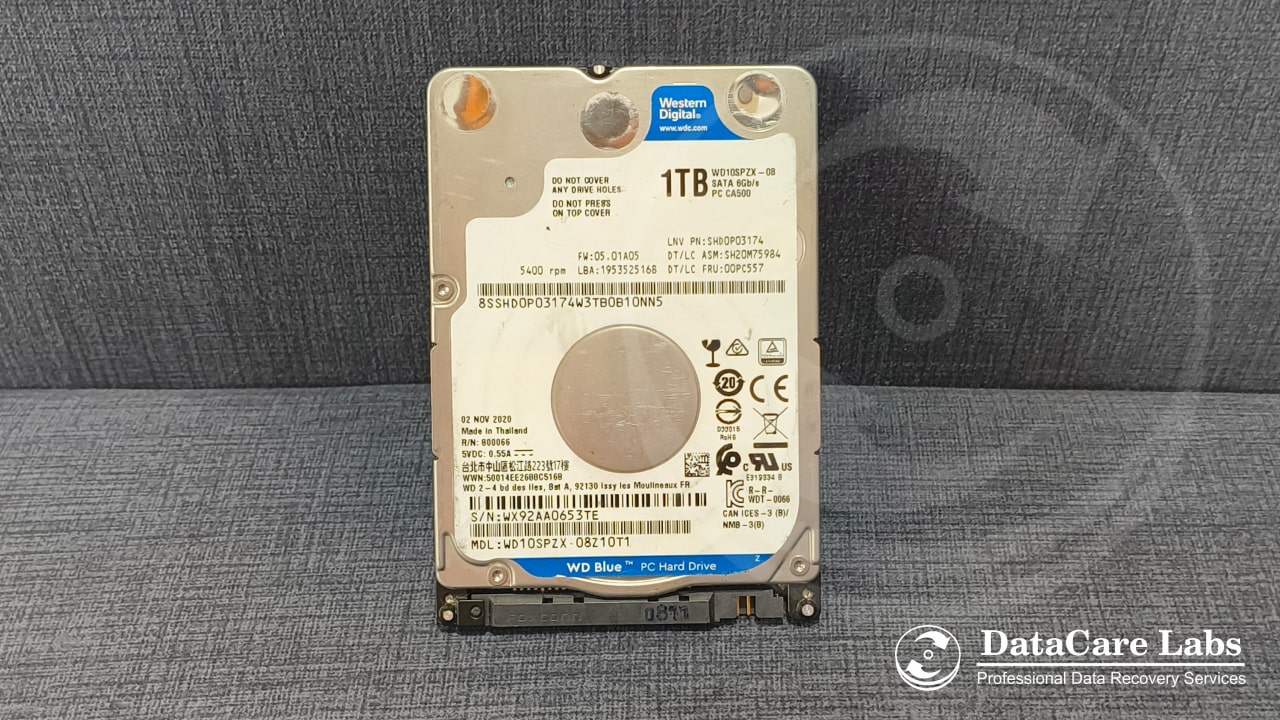
We see this in our lab often. The laptop stops at the BitLocker recovery screen, or does not start at all, and the owner fears the data is gone. But the real cause is the drive: bad sectors, a weak hard disk that clicks or is very slow, a drive that is not detected, boot device not found, or an SSD that has died. Typing the key then does nothing, because Windows cannot read the drive.
If you have the BitLocker recovery key, this is usually recoverable. At DataCare Labs, we repair or bypass the hardware fault, make a sector-by-sector copy of the encrypted drive with hardware imagers, and unlock that copy with your key. Bad sectors do not spoil the rest of the drive, because BitLocker unlocks every sector on its own. So, in most cases we get back most or all of the data. Only areas that are physically destroyed stay unreadable, with or without encryption.
What to do now:
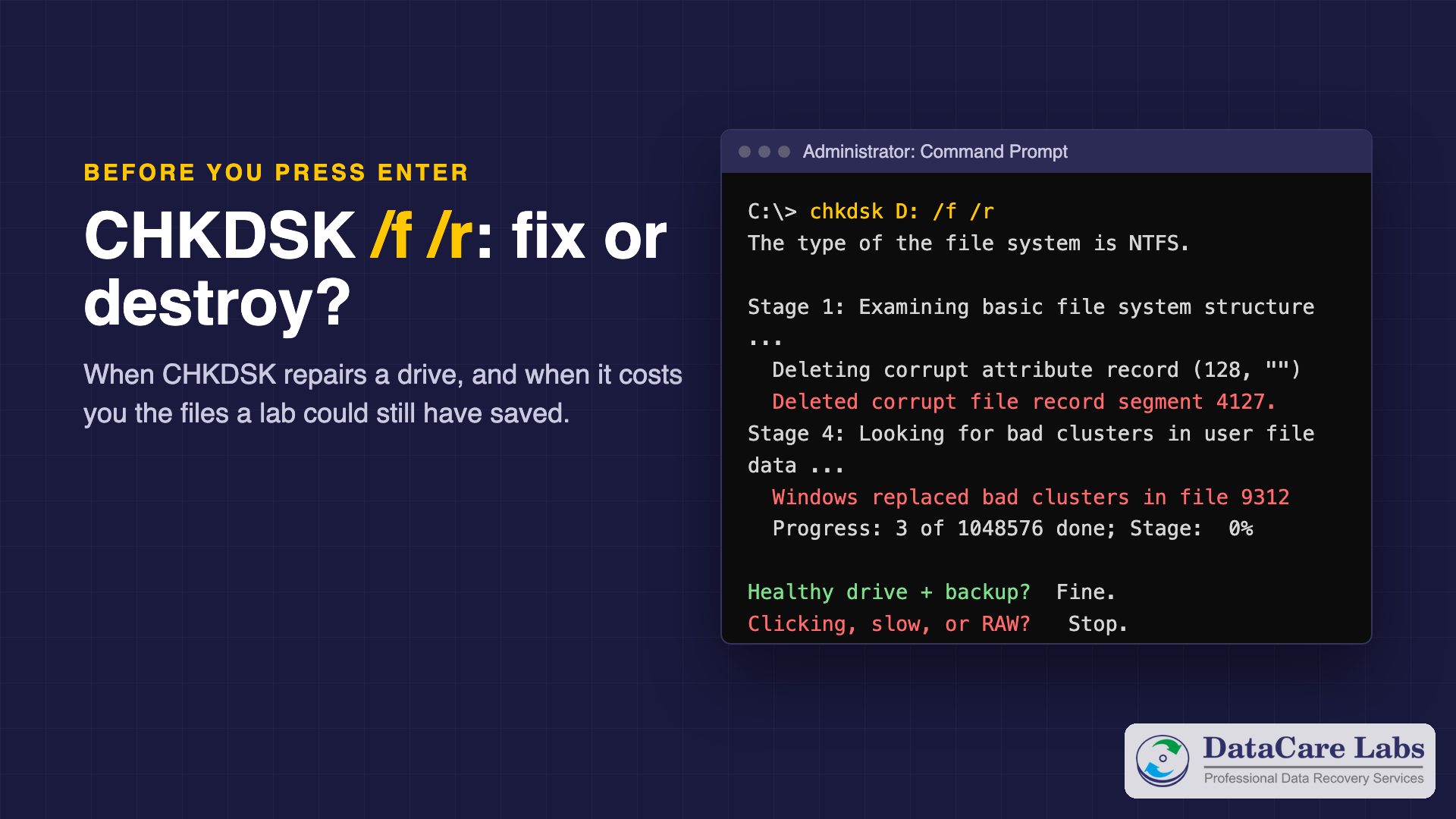
- Switch the laptop off. Do not keep restarting it, and do not run CHKDSK or repair tools on a failing drive.
- Find your BitLocker recovery key, using the steps and e-mail addresses above, and keep it ready.
- Call us. We check the drive for free and tell you what we can recover before you pay anything.
Without the key, even a perfect copy stays locked, and no lab can decrypt it. See our BitLocker data recovery service, or read more in recovering data from encrypted, failed drives.
We recover laptop drives, SSDs and hard disks at our lab in Pune. You check the recovered files before you pay. See data recovery cost for what affects the price.
What If the BitLocker Recovery Key Is Lost?
Here is the honest answer. Without the BitLocker recovery key, or your PIN or password, nobody can unlock an encrypted drive. BitLocker has no master key and no back door. Microsoft cannot create a new key, and neither can the laptop maker. A data recovery lab cannot break it either. Therefore, be careful with websites that sell a BitLocker recovery key generator or a bypass tool. They cannot work, and some are malware.
If the key is gone, your options are:
- Search once more: every Microsoft account in the family, old e-mails, external drives, the laptop box.
- Check your OneDrive or other backups. OneDrive still holds the files it synced before the lock-out.
- As a last step, reset the laptop. Windows installs again and the laptop works, but the reset erases the files on the drive.
After You Get In: Back Up the Key Now
Once Windows starts, take two minutes to make sure this never stops you again:
- Open Command Prompt as administrator and run
manage-bde -protectors -get C:. The 48-digit number under Numerical Password is your recovery key. - Save a copy somewhere other than the laptop: print it, or keep it with your important papers.
- Check that it is listed at aka.ms/myrecoverykey.
- Before the next BIOS update, suspend BitLocker for one restart with
manage-bde -protectors -disable C: -RebootCount 1, or choose Suspend protection in Control Panel.
BitLocker Recovery Key: Frequently Asked Questions
Answers for laptop owners and office IT teams in Pune and across India who are stuck at the BitLocker recovery screen.
Encrypted drive failed? Call +91 98600 70809 — the analysis is free.
BitLocker Drive Failed? Bring It With the Key
If your encrypted laptop drive or SSD has failed, switch the laptop off and do not keep restarting it. Then find your BitLocker recovery key and call our engineers. We check the drive for free and tell you what we can recover before you pay anything.
We offer free pickup across Pune and Pimpri-Chinchwad, and from anywhere in India. If you courier the drive yourself, follow our packing instructions.
📞 Call DataCare Labs: +91 98600 70809
🚚 Free Pickup & Delivery Across India
🔒 100% Confidential Recovery Process
⚡ Free Analysis & Evaluation
Or get a free analysis online.