Skip to content

CHKDSK Command: What /f /r /x Do, and When CHKDSK Can Destroy Your Files
Quick Answer: What Does the CHKDSK Command Do?
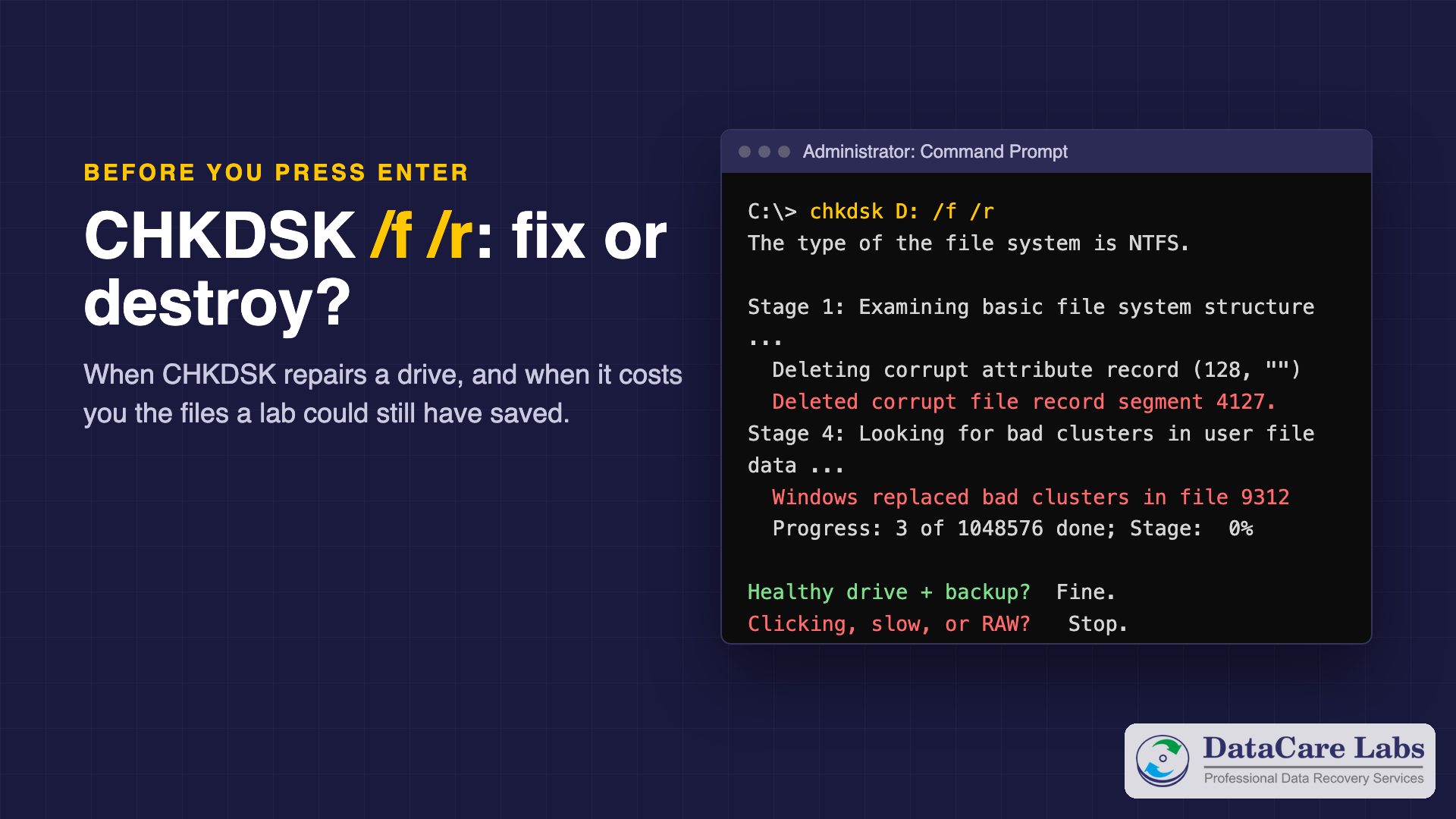
The CHKDSK command checks the file system on a drive, the index that tells Windows where every file lives, and a CHKDSK repair fixes errors in it. It cannot check a RAW drive at all. With /f the command fixes errors in that index. With /r it also reads every sector to find bad ones. On a healthy drive, that is useful. On a failing drive, however, it can cost you the very files you want to save.
Here is what each form of the CHKDSK command does. After that, we explain how to run the command safely, and when to stop.
- chkdsk X: : Read-only check, changes nothing
- chkdsk X: /f : Fixes file system errors
- chkdsk X: /r : Also scans every sector (includes /f)
- chkdsk X: /x : Dismounts the drive first (includes /f)
- chkdsk X: /scan : Online scan, NTFS only
- On a failing drive : Copy your files first
What the CHKDSK Command Actually Checks
The CHKDSK command reads the file system structures: on NTFS drives, the Master File Table, the folder indexes and the security records. When something does not add up, it reports it. With /f, it also repairs it. As a result, a drive that shows wrong sizes, missing folders or the file or directory is corrupted often works again after CHKDSK.
However, CHKDSK does not repair hardware. It cannot fix weak read heads, a failing SSD controller or damaged platters. Its job is to make the file system consistent again. So, when it meets a record it cannot read, it may delete it to keep the rest consistent.
CHKDSK Switches Explained: /f, /r, /x, /scan and /spotfix
chkdsk X:— reports problems only. It is the safe first step.chkdsk X: /f— fixes file system errors. On the drive Windows runs from, it asks to run at the next restart.chkdsk X: /r— does everything /f does, then reads every sector of the drive. Readable data from bad sectors is moved, and those sectors are marked as bad. On a large drive this takes hours.chkdsk X: /f /r /x— the popular combination. /x dismounts the drive first, so no program uses it while CHKDSK works. Since /r includes /f, typing both changes nothing.chkdsk X: /scan— scans an NTFS drive while it stays in use. It finds problems but does not take the drive offline.chkdsk X: /spotfix— fixes only the problems found by an earlier scan, so it finishes quickly.
Replace X with the drive letter. Run every CHKDSK command from Command Prompt opened as administrator. Microsoft lists every switch in its CHKDSK command reference.
How to Run CHKDSK Safely
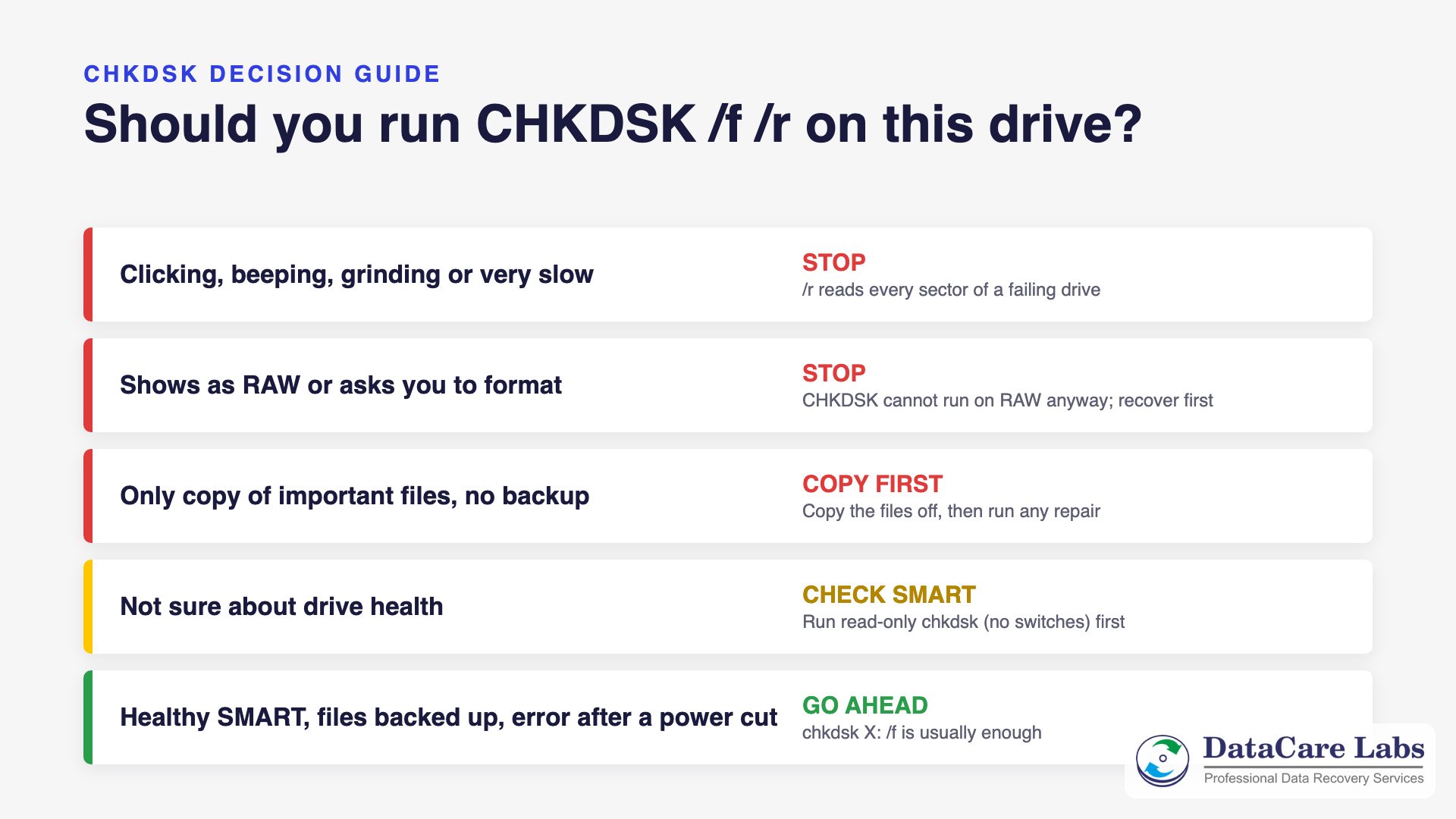
- Back up first. If the files on the drive exist nowhere else, copy them off before any repair.
- Check the drive’s health. A free SMART tool such as CrystalDiskInfo shows whether the drive reports reallocated or pending sectors. A drive marked Caution or Bad is failing. See signs your hard drive is failing.
- Run the read-only check. Type
chkdsk X:and read the report. It changes nothing. If Windows reports a RAW drive, skip CHKDSK and read the RAW drive section below. - Fix only what it found. On a healthy drive,
chkdsk X: /fis usually enough. - Use /r only on a healthy drive, for example after a power cut when you suspect a few bad sectors.
When a Repair Destroys Data
In our lab, we often see drives where a CHKDSK repair made a recoverable problem worse. These are the usual cases:
- A drive with weak heads. /r reads every sector, for hours. If the drive is clicking, slow or freezing, that long read can finish off the heads. Then the platters get scratched, and recovery gets harder and more expensive.
- Growing bad sectors. CHKDSK moves data away from bad sectors it can read. Data it cannot read is lost, and the file is left with holes.
- Deleted file records. Lines such as Deleting corrupt file record segment mean CHKDSK removed files from the index. Their data is no longer listed, and folders may disappear.
- Wrong repairs on a confused drive. If the partition was damaged or the drive returned bad data, CHKDSK repairs the wrong structures. Afterwards, the drive may show empty or as a few FOUND folders.
The rule is simple: if the files matter more than the drive, copy them first, or have the drive imaged. Repair afterwards.
“CHKDSK Is Not Available for RAW Drives”: What It Means
This message means Windows cannot recognise the file system on the drive at all. Instead of NTFS or exFAT, it sees RAW. CHKDSK needs a file system to repair, so it stops. Windows may also ask you to format the disk before you can use it.
Do not format it. A RAW drive usually still holds the files; only the structures that point to them are damaged. First, check whether the drive is healthy, as above. If it is, recovery software installed on another drive can often read the files. If the drive is also slow, clicking or not showing up properly, stop and get it checked. Our pen drive guide covers the same RAW problem on USB drives.
Stuck at One Percentage for Hours?
The CHKDSK command can sit at one percentage for a long time on a large drive, especially during the sector scan of /r. That alone is normal. However, if the number has not moved for an hour, and the drive clicks or the computer barely responds, the drive is struggling with bad sectors. In that case, every extra hour wears the drive further.
Switch the computer off, and do not run CHKDSK again. Stopping in the middle is not ideal, but carrying on with a dying drive costs more data.
Files in FOUND.000 After a Repair?
When CHKDSK finds data it cannot link back to a file, it saves it in a hidden folder named FOUND.000, as files such as FILE0000.CHK. The original names and folders are gone.
Some of these files can be used again. If a .CHK file holds one complete photo or document, renaming it with the right extension can open it. File identification tools can guess the type. Larger files that were split across the disk are usually broken, though. For important data, it is often better to recover from a full copy of the drive, made before any more repairs.
On an SSD or an External Hard Drive
On an SSD, a CHKDSK repair with /f fixes the file system just as it does on a hard disk. The /r scan adds little, because the SSD manages bad blocks itself. If an SSD shows errors, check its health first; SSDs often fail without warning.
On an external hard drive, use /x so Windows releases the drive first. Also try a different cable and port before blaming the file system. A loose USB connection causes many of the errors that send people to CHKDSK, and a drive that keeps disconnecting should not be repaired at all until it is stable.
SFC and DISM: Different Tools, Different Problems
chkdskrepairs the file system on a drive.sfc /scannowrepairs Windows system files from a stored copy.DISM /Online /Cleanup-Image /RestoreHealthrepairs that stored copy, the Windows image.
They solve different problems. Unlike the CHKDSK command, SFC and DISM never touch your own files. If Windows itself is unstable but the drive is healthy, start with SFC and DISM. If folders or files are missing or unreadable, check the drive’s health first, then use CHKDSK.
When to Bring the Drive to a Lab Instead
Stop and get professional help if the drive clicks or beeps, is very slow, disappears, has turned into a RAW drive, or failed a short DST check. The same applies if CHKDSK has already deleted files you need.
At DataCare Labs, we first make a sector-by-sector copy of the drive with hardware imagers. These read weak areas gently and skip what would stress the drive. Then we do any file system repair on the copy, never on your drive, so a CHKDSK repair is never part of our process on the original. The diagnosis is free, and you check the recovered files before you pay.
We recover hard disks, external hard drives, SSDs and pen drives at our lab in Pune. See hard disk data recovery cost for what affects the price.
CHKDSK Command: Frequently Asked Questions
Answers for anyone in Pune or across India about to run CHKDSK on a hard disk, SSD or external drive.
Drive failing? Call +91 98600 70809 — the analysis is free.
Drive Clicking, RAW or Damaged by CHKDSK?
Switch the computer off and don’t run CHKDSK again. Every extra run can make recovery harder. Instead, call our engineers. We check the drive for free and tell you what we can recover before you pay anything.
We offer free pickup across Pune and Pimpri-Chinchwad, and from anywhere in India. If you courier the drive yourself, follow our packing instructions.
📞 Call DataCare Labs: +91 98600 70809
🚚 Free Pickup & Delivery Across India
🔒 100% Confidential Recovery Process
⚡ Free Analysis & Evaluation
Or get a free analysis online.